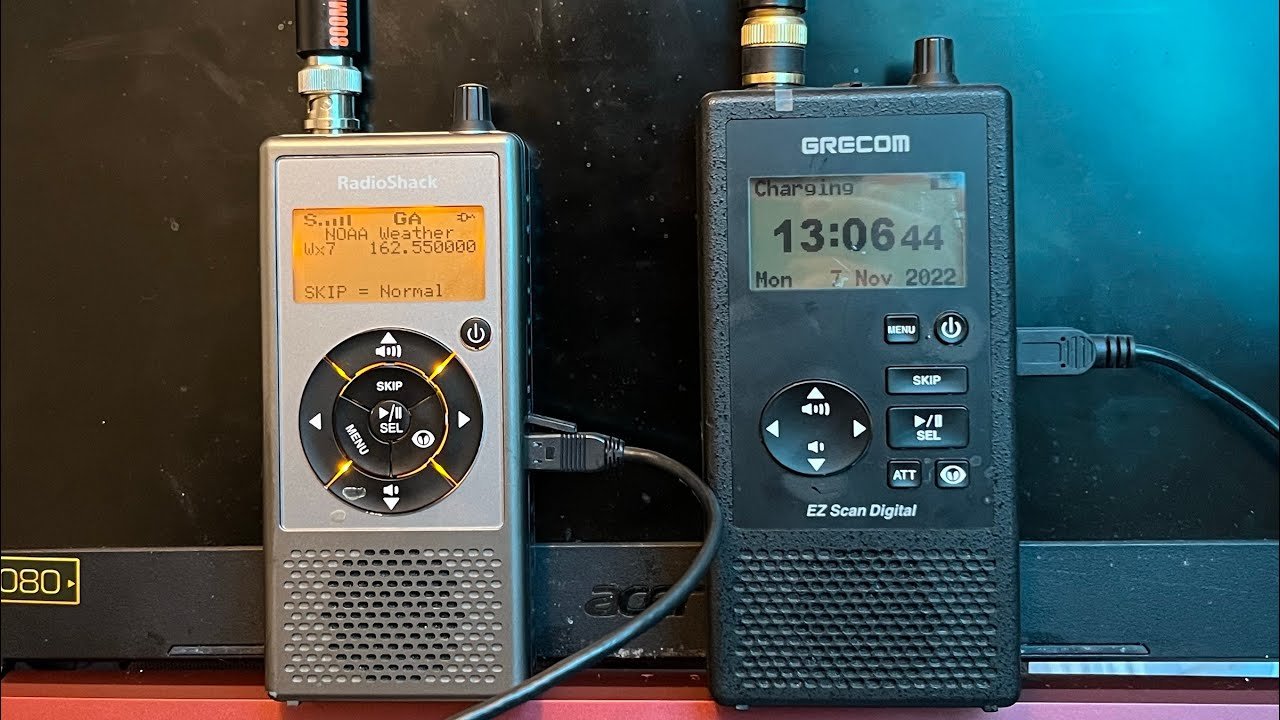
The Grecom PSR-800 scanner is a popular digital trunking scanner used by radio enthusiasts, emergency service followers, and hobbyists who want to monitor a wide array of radio frequencies. Like any advanced piece of electronic equipment, the PSR-800 relies heavily on its software to deliver optimal performance, stay compatible with evolving radio systems, and provide users with new features and bug fixes. Software upgrades are, therefore, crucial for keeping the device up to date. In this article, we’ll explore everything you need to know about Grecom PSR-800 software upgrades—from why they’re important, to how to perform them, and what to do when things go wrong.
Understanding the Grecom PSR-800 Scanner
Before delving into software upgrades, let’s briefly review what makes the Grecom PSR-800 unique. The PSR-800 is a handheld digital scanner that supports trunked radio systems, digital APCO-25 Phase I, and conventional analog channels. It is renowned for its ease of use, dynamic memory architecture, and support for RadioReference database integration. These features make it a favorite among those who want a powerful, yet user-friendly, scanning experience.
Why Software Upgrades Matter
Regular software upgrades for the Grecom PSR-800 serve several essential purposes:
- Performance Improvements: Upgrades often fix bugs that affect scanning speed, memory management, or audio clarity.
- Compatibility: Radio systems evolve, and software updates ensure your scanner can decode new digital protocols or frequency band plans.
- New Features: Manufacturers may add new scanning modes, search functions, or support for additional radio types.
- Security: Updates may patch vulnerabilities that could be exploited in rare cases, especially when connecting the device to computers or networks.
- Database Updates: Integration with services like RadioReference requires periodic updates to maintain compatibility.
Types of Software for the PSR-800
There are two main types of software associated with the Grecom PSR-800:
- Firmware: This is the low-level software that runs directly on the scanner hardware. Firmware upgrades are critical for ensuring the device functions as intended.
- PC Application (EZ Scan Digital Software): This Windows-based software is used for programming the scanner, updating databases, and managing the device’s memory card. Upgrades to this software can add new features and improve usability.
Both firmware and PC application upgrades are important, but the upgrade process and considerations differ for each.
Preparing for an Upgrade
Before attempting any software or firmware upgrade, it’s vital to prepare:
1. Backup Your Data
Always back up your current configuration and frequency lists. The EZ Scan software allows you to save your scanner’s configuration to your PC. This step ensures you can restore your favorite settings if something goes wrong.
2. Charge Your Scanner
If the scanner loses power during a firmware upgrade, it could become inoperable. Make sure your PSR-800 is fully charged or connected to a reliable power source.
3. Check Compatibility
Visit the official Whistler Group website or the support section for the PSR-800. While Grecom originally manufactured the scanner, Whistler now provides ongoing support and software updates. Verify that you’re downloading the correct upgrade files for your model.
4. Use a Reliable Computer
Upgrades should be performed from a stable Windows PC with administrator access. Avoid using computers with known stability issues.
How to Upgrade the PC Application (EZ Scan Digital Software)
Upgrading your EZ Scan software is straightforward:
-
Download the Latest Version:
Visit the Whistler Group’s support page and download the latest EZ Scan Digital software for the PSR-800. -
Install the Update:
Run the downloaded installer and follow the prompts to update or install the software. -
Restart the Software:
After installation, restart the PC application to ensure changes take effect. -
Restore or Update Your Configuration:
Open your saved configuration or use the software to download the latest RadioReference database for your area.
How to Upgrade the Firmware
Upgrading the PSR-800 firmware usually involves the following steps:
-
Connect the Scanner to Your PC:
Use the supplied USB cable to connect your PSR-800. Make sure the scanner is powered on. -
Open EZ Scan Digital Software:
Launch the EZ Scan software on your PC. -
Check for Firmware Updates:
Within EZ Scan, look for an option like “Check for Updates” or “Update Firmware.” The software will prompt you if a new firmware version is available. -
Download and Install:
Follow the software prompts to download and install the new firmware. The scanner may restart several times during the process. -
Verify the Update:
Once complete, verify the firmware version on your scanner through the device menu or EZ Scan software.
Troubleshooting Common Issues
1. Scanner Not Detected
- Ensure the USB cable is properly connected.
- Try a different USB port.
- Restart your computer and scanner.
- Reinstall the EZ Scan software or drivers.
2. Upgrade Fails or Freezes
- Make sure your scanner is fully charged.
- Do not disconnect the scanner during the upgrade process.
- Restart the upgrade process if interrupted.
- If the scanner becomes unresponsive, consult the Whistler support site for recovery instructions.
3. Lost Configuration
- Restore your configuration from the backup created before the upgrade.
- If you didn’t back up, you may need to reprogram your favorite channels manually.
Best Practices for Successful Upgrades
- Read Release Notes: Always review the release notes for new software or firmware. These documents detail new features, bug fixes, and any known issues.
- Stay Up to Date: Periodically check for new firmware and software versions, especially if you notice scanning issues or use your device regularly.
- Community Forums: Visit radio scanner forums like RadioReference for user experiences and tips regarding specific upgrades.
- Avoid Beta Versions: Unless you’re an advanced user, stick to official, stable releases to minimize the risk of bricking your device.
Additional Tips and Tricks
1. Use SD Card Adapters
Some users prefer removing the microSD card from the scanner, plugging it into a PC with an adapter, and using EZ Scan to update the card directly. This method can sometimes be faster and more reliable, especially if the scanner has connectivity issues.
2. Keep Multiple Backups
Store multiple configuration backups on your computer or cloud storage, especially before major upgrades.
3. Understand “Library Updates”
Apart from firmware, the PSR-800 uses a frequency “library” or database, updated regularly via EZ Scan. Keeping this database updated ensures your scanner can tune in to the latest frequencies and talkgroups in your area.
Frequently Asked Questions
Q: Will upgrading erase my favorite channels?
A: Firmware upgrades usually do not erase stored channels, but it’s best practice to back up before upgrading.
Q: Can I downgrade if I don’t like the new version?
A: In some cases, you can roll back firmware via the EZ Scan software, but this is not always guaranteed. Always check the manufacturer’s documentation.
Q: Is there Mac support for upgrades?
A: Officially, EZ Scan is Windows-only. Mac users can try using virtualization or Boot Camp to run Windows.
Q: Where can I get help if something goes wrong?
A: The Whistler Group support site and RadioReference forums are excellent resources for troubleshooting and peer support.
Conclusion
Keeping your Grecom PSR-800 scanner up to date through regular software and firmware upgrades is essential for enjoying the latest features, ensuring compatibility with evolving radio systems, and maintaining optimal performance. By following best practices for backup, installation, and troubleshooting, you can upgrade your PSR-800 with confidence and continue to explore the world of radio communication to its fullest.
Whether you’re a hobbyist or a professional, understanding the importance and process of software upgrades ensures your device remains reliable and effective for years to come.