Abdul haye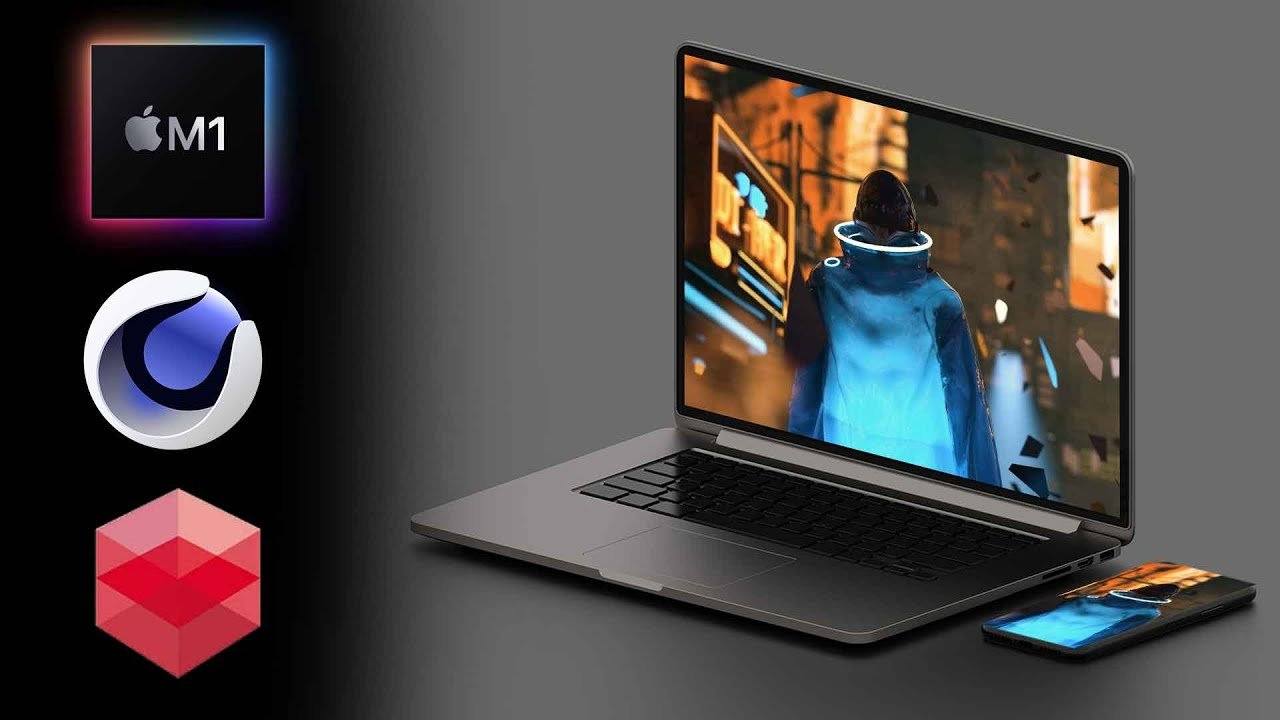
The world of 3D modeling has seen exponential growth in recent years, with applications spanning industries such as design, architecture, engineering, gaming, and entertainment. For creative professionals and hobbyists alike, the need for powerful, portable hardware capable of handling complex 3D models has never been greater. Enter the MacBook—a sleek, reliable, and increasingly powerful laptop that has become a favorite among designers and 3D artists.
In this comprehensive guide, we’ll explore how to maximize your experience working with 3D models on a MacBook. We’ll cover the best software options, hardware considerations, tips for optimizing performance, and the unique advantages of using a MacBook for 3D modeling projects.
Why Choose a MacBook for 3D Modeling?
Apple’s MacBook lineup, including the latest MacBook Air and MacBook Pro models, is renowned for its build quality, high-resolution Retina displays, and seamless integration with creative software. The introduction of Apple Silicon (M1, M2, and beyond) has further elevated the performance of MacBooks, making them capable of handling demanding 3D modeling tasks that were previously reserved for desktop machines.
Key Advantages:
- Portability: MacBooks are lightweight and easy to carry, perfect for professionals on the go.
- Display Quality: Retina displays offer exceptional color accuracy and resolution, crucial for detailed 3D work.
- Performance: Apple Silicon chips deliver impressive CPU and GPU performance, enabling smooth manipulation of complex 3D models.
- Ecosystem: MacBooks integrate seamlessly with other Apple devices and software, streamlining your workflow.
Best 3D Modeling Software for MacBook
Whether you’re a beginner or an experienced designer, there are numerous 3D modeling programs available for macOS. Here are some of the most popular and powerful options:
1. Blender
Blender is an open-source, free 3D modeling suite that offers a comprehensive set of tools for modeling, sculpting, texturing, animation, and rendering. Blender has full support for Apple Silicon, making it a top choice for MacBook users.
2. Autodesk Maya
Maya is an industry-standard 3D modeling and animation software used in film, TV, and game development. While it requires a paid license, Maya offers advanced features and supports macOS, providing professional-grade capabilities.
3. Cinema 4D
Cinema 4D is celebrated for its intuitive interface and powerful motion graphics tools. It runs smoothly on MacBooks and is widely used in the advertising and entertainment industries.
4. SketchUp
SketchUp is user-friendly and ideal for architectural modeling and interior design. The Mac version offers most of the features found in its Windows counterpart, making it a solid choice for architects and designers.
5. ZBrush
Renowned for digital sculpting, ZBrush is perfect for artists focused on character modeling and fine-detail work. ZBrush offers a native macOS version that leverages MacBook hardware efficiently.
6. Fusion 360
Developed by Autodesk, Fusion 360 is aimed at product design and engineering. It combines CAD, CAM, and CAE tools in one platform and is available for macOS.
Hardware Considerations for 3D Modeling on MacBook
While modern MacBooks are impressively powerful, choosing the right model and configuration is critical for optimal 3D modeling performance.
1. Processor (CPU)
For 3D modeling, a fast multi-core processor is essential. Apple’s M1 and M2 chips (and their Pro, Max, and Ultra variants) provide excellent performance for modeling, rendering, and multitasking.
2. Graphics (GPU)
A robust GPU is vital for handling complex 3D scenes and rendering tasks. The integrated GPUs in Apple Silicon outperform many entry-level discrete graphics cards, but for heavy-duty work, consider the MacBook Pro models with higher GPU core counts.
3. Memory (RAM)
3D modeling software can consume a lot of memory, especially when working with large files or complex scenes. Opt for at least 16GB of RAM, or more if your budget allows.
4. Storage
Fast SSD storage ensures quick loading and saving of large 3D project files. A minimum of 512GB is recommended, but 1TB or more is ideal for professionals dealing with multiple projects.
5. External Devices
Consider investing in a high-quality external monitor for a larger workspace, as well as a reliable mouse, graphics tablet, or 3D mouse for improved precision and control.
Tips for Optimizing 3D Modeling on MacBook
Maximize your productivity and performance with these practical tips:
- Keep Software Updated: Always use the latest versions of your modeling software for performance improvements and bug fixes.
- Manage Background Processes: Close unnecessary applications to free up system resources.
- Use External Cooling: Prolonged rendering can heat up your MacBook. Consider using a cooling pad during intensive tasks.
- Leverage Cloud Storage: Store large assets and backups on cloud platforms like iCloud, Google Drive, or Dropbox to save local disk space.
- Optimize Project Files: Regularly clean up your scenes by removing unused assets, textures, or geometry.
3D Model MacBook: Creating and Downloading MacBook 3D Models
If your project requires a 3D model of a MacBook itself—whether for product visualization, animation, or app mockups—there are several approaches:
1. Creating Your Own MacBook 3D Model
With software like Blender or Maya, you can create detailed models of a MacBook by referencing technical drawings and high-resolution images. This allows for customization and the ability to tailor the model to your project’s specific needs.
2. Downloading Ready-Made MacBook 3D Models
Many online platforms offer high-quality, pre-made 3D models of MacBooks in various formats (OBJ, FBX, STL, etc.). Some reputable sources include:
- TurboSquid
- Sketchfab
- CGTrader
- Free3D
Always check licensing terms before using a downloaded model in commercial projects.
Real-World Applications of 3D MacBook Models
3D models of MacBooks are used in a variety of settings:
- Product Visualization: Showcasing software or accessories in photorealistic renderings.
- Animation: Creating dynamic scenes for commercials or explainer videos.
- Augmented Reality (AR): Integrating MacBook models into AR experiences for marketing or training.
- App Mockups: Presenting app interfaces on a realistic 3D MacBook for pitches and portfolios.
Future of 3D Modeling on MacBook
With continuous advancements in Apple Silicon and graphics technologies, the future looks bright for 3D artists using MacBooks. Expect even greater performance, better battery life, and more powerful software integrations in coming years.
Conclusion
Whether you’re a seasoned 3D artist or just starting your journey, the MacBook offers a compelling platform for 3D modeling. By choosing the right software, optimizing your hardware, and leveraging the wealth of resources available for 3D MacBook models, you can unlock new creative possibilities and bring your visions to life—anywhere, anytime.
Working with 3D models on a MacBook is more accessible than ever. With the right approach and tools, your MacBook can become your portable creative powerhouse, ready to tackle any 3D project you imagine.