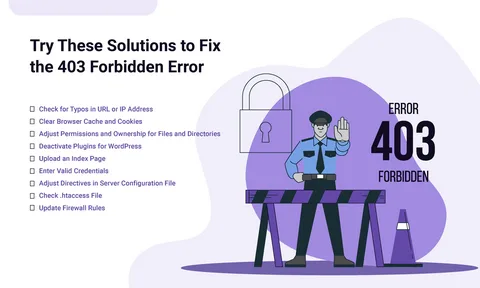
Seeing a 403 Forbidden error pop up on your screen is frustrating. One minute your website or page is working perfectly, and the next, your browser throws a message saying you don’t have permission to access it. The good news? A 403 error is very common, and in most cases, you can fix it quickly once you understand why it appears.
This guide explains what a 403 Forbidden error means, why it shows up, and the best ways to fix it—step by step.
What Is a 403 Forbidden Error?
A 403 Forbidden error appears when a server understands your request but refuses to allow access.
In simple words:
👉 The server knows what you want, but it won’t let you in.
This happens because of permission issues, incorrect settings, blocked access, or security rules.
How the Error Usually Appears
Different websites show it in different styles. You might see:
-
403 Forbidden
-
HTTP Error 403 – Forbidden
-
Access Denied
-
You don’t have permission to access this resource
-
Forbidden: You don’t have authorization
No matter how it looks, the meaning is the same.
Why Does the 403 Forbidden Error Happen?
Several reasons can trigger a 403 error. Here are the most common:
1. Incorrect File or Folder Permissions
Servers use file permissions to control who can view, edit, or run files.
If permissions are set incorrectly, the server blocks access.
2. Wrong .htaccess File Settings
A corrupted or misconfigured .htaccess file can stop pages from loading.
This is one of the biggest causes of the 403 error for WordPress and shared hosting websites.
3. Missing Index File
If your website lacks a homepage file like:
-
index.html
-
index.php
…the server may show a 403 error instead.
4. IP Address Blocking
Some sites block certain:
-
IP addresses
-
IP ranges
-
Countries
If you’re blocked, the server returns 403 Forbidden.
5. Hotlink Protection Enabled
If the server thinks you’re stealing images or files from another site, it may block the request.
6. Plugin or Theme Issues (WordPress Users)
A faulty plugin can break permissions or redirect rules.
7. Server Misconfiguration
Sometimes the hosting provider changes settings on their end, causing unexpected access issues.
How to Fix the 403 Forbidden Error (Step-by-Step)
Here are the most effective solutions:
Refresh the Page
It sounds simple, but browsers can glitch.
Press:
👉 Ctrl + F5 (Windows)
👉 Cmd + Shift + R (Mac)
Clear Cookies & Cache
Cached versions of the page can cause errors.
Clear your browser cookies and cache, then try again.
Check the URL
Mistyped URL = blocked folder access.
Make sure the URL is correct and does not point to a restricted directory.
Fix File Permissions (for site owners)
Correct permissions are:
-
Folders: 755
-
Files: 644
You can change them using:
-
cPanel File Manager
-
FTP client (FileZilla)
Incorrect permissions = instant 403 error.
Reset or Rename .htaccess File
If you’re using WordPress:
-
Go to public_html
-
Find .htaccess
-
Rename it to .htaccess_old
-
Reload site
If it works → the .htaccess file was the problem.
You can generate a new one in WordPress settings.
Disable Plugins
If a plugin is interfering:
-
Go to wp-content/plugins
-
Rename the folder to plugins-old
-
Reload your site
If the error disappears → a plugin is the culprit.
Contact Your Hosting Provider
If none of the fixes work, the server may have:
-
security rules blocking access
-
firewall restrictions
-
mod_security triggers
Your hosting support can check logs and fix it.
Is a 403 Forbidden Error Dangerous?
Not really.
It’s usually a technical problem, not a virus or hack.
However, if you did not change anything on your site, and it suddenly shows 403 errors, it may be worth:
-
scanning for malware
-
checking server logs
-
verifying no unauthorized access occurred
403 Forbidden vs 404 Not Found – What’s the Difference?
| Error Code | Meaning |
|---|---|
| 403 Forbidden | You are blocked from accessing the resource |
| 404 Not Found | The resource does not exist |
So 403 = blocked,
404 = missing page.
Final Thoughts
A 403 Forbidden error can be annoying, but it’s usually easy to fix once you know the cause. Most problems come from permission settings, .htaccess issues, or blocked access rules. Whether you’re a site visitor or a website owner, the steps above will help you diagnose and resolve the issue quickly.
FAQs
1. What causes a 403 Forbidden error?
Incorrect permissions, server settings, corrupted .htaccess, blocked IPs, or plugin conflicts.
2. Is a 403 error permanent?
No. It can usually be fixed by correcting settings or permissions.
3. Can clearing cache fix the 403 error?
Sometimes, especially if the browser stored outdated data.
4. Does a 403 error mean I’m hacked?
Not necessarily, but if it appears suddenly, scanning for malware is wise.
5. Can hosting providers fix 403 errors?
Yes, they can check access logs and resolve server-level issues.